

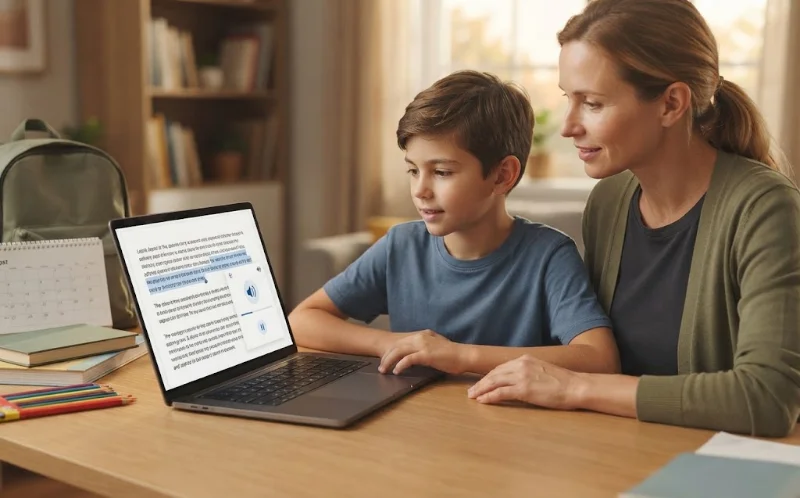
Every fall, a version of the same thing happens in thousands of classrooms. A student has text-to-speech written into their IEP. The tool exists. The license is paid for. And the student spends the first three weeks of school unable to log in, because nobody tested the password on the school Chromebook before the first day.
The technology was never the problem. The setup was.
This checklist covers what to install, what to test, what to ask the school for, and when to do each of those things, starting six weeks before the first bell.
What should be on a back-to-school assistive technology checklist?
A complete back-to-school assistive technology checklist covers six categories: reading tools like text-to-speech and accessible books, writing and dictation tools, organization and time management tools, note-taking and classroom capture tools, low-tech backups, and account readiness including passwords, logins, and testing on the school’s own network before day one.
Start six weeks out, not the week before
Most assistive technology fails in the first month of school for reasons that have nothing to do with the tool. Accounts expire over the summer. Districts push new Chromebook policies in August that block extensions. A student switches buildings and the new IT department has never heard of the software.
All of that is fixable in July. Almost none of it is fixable during the first week of September.
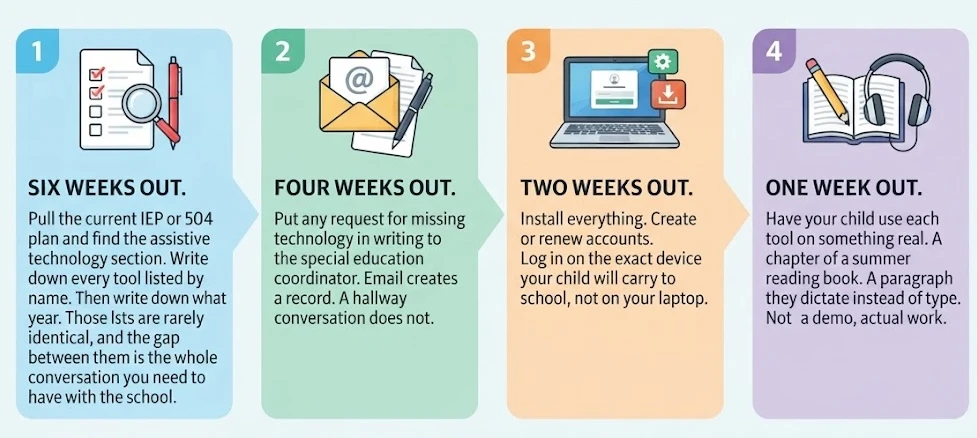
Six weeks out. Pull the current IEP or 504 plan and find the assistive technology section. Write down every tool listed by name. Then write down what your child actually used last year. Those two lists are rarely identical, and the gap between them is the whole conversation you need to have with the school.
Four weeks out. Put any request for missing technology in writing to the special education coordinator. Email creates a record. A hallway conversation does not.
Two weeks out. Install everything. Create or renew accounts. Log in on the exact device your child will carry to school, not on your laptop.
One week out. Have your child use each tool on something real. A chapter of a summer reading book. A paragraph they dictate instead of type. Not a demo, actual work.
The LDRFA guide to navigating the IEP process covers how to request changes to the plan itself if the technology section is thin or out of date.
Reading tools for students with dyslexia
Reading support is the category where students with dyslexia gain the most ground fastest. A student who can listen to a chapter at their own pace participates in the class discussion. A student stuck decoding page one does not.
Text-to-speech. Every major platform includes a free version. Chromebooks have Select-to-speak built into accessibility settings. iPads and iPhones have Speak Screen under Accessibility. Microsoft Immersive Reader is free inside Word, OneNote, and Edge, and it includes line focus and syllable breaks that help dyslexic readers specifically. Paid options with better voices include Speechify and NaturalReader, both of which offer limited free tiers.
Ready check: voice selected, reading speed set to your child’s preference, tested on a school PDF.
Accessible books and textbooks. Bookshare is free for qualifying US students through an award from the U.S. Department of Education’s Office of Special Education Programs. Dyslexia qualifies. An IEP or 504 plan is not required to sign up, though you do need eligibility certified by a qualified professional. Learning Ally provides human-narrated audiobooks and textbooks, and many districts already hold a school license, so ask before paying the family rate.
Ready check: account active, eligibility form submitted, at least one assigned title downloaded.
OCR for printed handouts. Half of what comes home is paper. Microsoft Lens and Seeing AI both photograph a worksheet and read it aloud, and both are free. Apple’s built-in Live Text does the same thing from the camera app.
Ready check: your child has photographed and listened to one worksheet without help.
Reading rulers and font tools. Free browser extensions like BeeLine Reader and OpenDyslexic change how text sits on the screen. They cost nothing and some students find them more useful than audio.
More options are sorted by category on the LDRFA text to speech tools and digital book resources pages.
Writing and dictation tools for dyslexia and dysgraphia
Writing is where the gap between what a student knows and what a student can put on paper shows up hardest. These tools close it.
Speech-to-text. Google Docs has Voice Typing built in under the Tools menu, free, no install. Windows and macOS both include system-level dictation. Dragon remains the most accurate paid option for students who dictate long assignments.
Ready check: your child has dictated one paragraph and corrected it, because dictation without editing skill produces a mess.
Word prediction. Co:Writer from Don Johnston predicts words even when the spelling is phonetic, which matters for dyslexic writers whose attempts a standard spellchecker cannot interpret. Read&Write for Google Chrome includes prediction in its premium tier. The free version of Read&Write still gives text-to-speech and highlighting, and teachers can get the full premium version at no cost through Texthelp’s free for teachers program.
Proofreading. Grammarly catches what a standard spellchecker misses, including homophone errors that dyslexic writers make constantly. The free tier handles most school writing.
Graphic organizers. Mindomo and Canva’s free education account both let students map an essay visually before writing a sentence. For students with executive function challenges, the outline is often harder than the prose.
The LDRFA roundup of assistive technology tools and apps for better writing goes deeper on each of these.
Organization and focus tools for students with ADHD
Here is the rule that governs every ADHD tool: if it requires your child to remember to open it, it will not work. The tool has to come to them.
Notification-driven task management. Todoist and Google Tasks both push reminders to the phone or watch. The free tiers are enough. The setup that matters is recurring reminders tied to times of day, not a list your child has to check.
Visual timers. A Time Timer shows elapsed time as a shrinking red disk, which makes an abstract twenty minutes concrete. The physical version runs around $35. The free app version does the same job on a phone.
Shared calendars. Put your child’s assignments on a calendar you can both see. Google Calendar is free and syncs to every device.
Noise reduction. Noise-canceling headphones or simple foam earplugs. This is one of the few pieces of assistive technology students will ask for on their own.
Task breakdown. Goblin Tools has a free tool called Magic ToDo that takes “write history essay” and splits it into steps. It was built by and for neurodivergent users and it costs nothing.
The LDRFA page on organization and study tools covers more, and if the underlying issue is planning rather than attention, read signs and symptoms of executive function disorder.
Note-taking and classroom capture
Students who cannot listen and write at the same time lose the lesson while transcribing it. Three fixes, in order of how easy they are to get:
Teacher-provided notes. Free, and available to any student whose IEP or 504 plan lists it as an accommodation. Ask for it in writing.
Audio recording. Otter.ai transcribes lectures and offers a free tier with monthly limits. Glean is built specifically for students with disabilities and is usually purchased by the school or college rather than the family. Check your district’s recording policy first, because some require teacher consent.
Smartpens. Livescribe pens record audio while your child writes, then link the audio to whatever was on the page at that moment. Tap a word, hear what the teacher was saying. These run roughly $100 to $200 and last for years.
Low-tech tools that belong on every list
Devices die. Wifi drops. Districts push updates that break extensions on a Tuesday morning. Every student who relies on high-tech assistive technology needs a low-tech version of the same support.
- Index tabs and sticky flags for finding pages without rereading
- Highlighter tape, which lifts off and can be reused
- Colored overlays for students who report visual crowding
- A slant board or a three-ring binder turned sideways to raise the writing surface
- Pencil grips for students with dysgraphia
- Color-coded folders, one color per subject, held all year
- A paper checklist taped inside the locker door
- An analog timer that needs no charging
None of this requires an IT ticket.
What each tier actually costs
Parents ask this first and most articles bury the answer. Here is the full picture by category. Prices verified August 2026, and worth rechecking at the linked pages since subscription pricing changes often.
| Category | Free option | Usually school-provided | Family pays |
|---|---|---|---|
| Text-to-speech | Chromebook Select-to-speak, iOS Speak Screen, Immersive Reader, Read&Write free tier | Kurzweil 3000, Read&Write district license | Speechify or NaturalReader premium, roughly $100 to $140 per year |
| Accessible books | Bookshare, free for qualifying US students | Learning Ally school subscription, Bookshare organizational account | Learning Ally family membership, $135 per year, fee waivers available |
| OCR and scanning | Microsoft Lens, Seeing AI, Apple Live Text | Scanner access in the resource room | OCR features in NaturalReader paid plans |
| Speech-to-text | Google Docs Voice Typing, Windows and macOS dictation | Dragon site license | Dragon individual license, roughly $200 to $700 depending on version |
| Word prediction | Read&Write free tier gives TTS but not prediction | Co:Writer, Read&Write premium via district | Co:Writer or Read&Write premium subscription, roughly $99 to $150 per year |
| Proofreading | Grammarly free | Grammarly for Education licenses | Grammarly Premium, roughly $144 per year |
| Organization and timers | Google Tasks, Google Calendar, Todoist free, Goblin Tools | Planners and organizational coaching written into the IEP | Time Timer hardware, around $35 |
| Note capture | Otter.ai free tier | Glean, teacher-provided notes as an accommodation | Livescribe smartpen, roughly $100 to $200 |
| Low-tech supports | Nothing here is expensive | Should be supplied by the classroom | Under $50 for the whole kit |
Two things that column three should never include: anything already named in your child’s IEP, and anything the school has agreed to provide. Which brings us to the part parents skip.
Getting the school to pay for it
Under 34 CFR §300.105, if assistive technology is required as part of your child’s special education, related services, or supplementary aids and services, the public agency must make it available. The U.S. Department of Education’s guidance on assistive technology under IDEA is direct about the funding question: AT devices and services must be funded by the district when the IEP team determines they are required.
That same regulation includes something most parents never hear about. If the IEP team determines your child needs access to a school-purchased device at home in order to receive a free appropriate public education, the school has to allow it. The device does not have to stay in the building.
The IEP team is also required to consider assistive technology for every student with an IEP, every year, under 34 CFR §300.324(a)(2)(v). Consider is the operative word. It gets skipped constantly.
If assistive technology has never been discussed, request an evaluation in writing. Something like this:
Dear [coordinator’s name],
I am requesting an assistive technology evaluation for my child, [name], under 34 CFR §300.105 and §300.324(a)(2)(v). [Name] has [dyslexia / ADHD / other diagnosis] and continues to struggle with [reading grade-level text independently / completing written assignments / tracking assignments and deadlines].
I would like the IEP team to consider whether assistive technology devices and services are required for [name] to make progress in the general education curriculum, and I would like the results of that evaluation documented in the IEP.
Please confirm receipt of this request and let me know the next steps and timeline.
Thank you, [Your name and date]
If you are not satisfied with the district’s evaluation, you have the right to request an independent educational evaluation at public expense under 34 CFR §300.502. Wrightslaw covers the dispute process in detail.
More background on the legal side is in the LDRFA guide on what parents should know about assistive technology laws and legislation and the overview of accommodations and modifications for students with LD.
Test everything on the school’s network before day one
This is the step almost nobody takes, and it is the one that prevents the most damage.
Log in on the school device, not yours. A managed Google account often cannot authenticate third-party logins. Find out in July.
Check whether extensions are allowed. Districts allowlist Chrome extensions centrally. Read&Write may install fine at home and refuse to load at school. Email the district IT help desk and ask which extensions are approved.
Save the passwords somewhere your child can reach them. A student with dyslexia who has to type a fourteen-character password with mixed case will stop using the tool by October. Password manager, or a card in the pencil case, whatever works.
Confirm the school wifi does not block the service. Some content filters block audio streaming, which breaks audiobook apps.
Charge everything, and decide where the charger lives. One at home, one in the backpack. This sounds trivial until it is week two and the device is dead by third period.
Get the IT contact name. When something breaks in October you want a person, not a form.
Teach your child to use the tool, not just own it
Assistive technology gets abandoned for two reasons. The student never got fluent with it, or the student felt conspicuous using it.
Fluency comes from practice on low-stakes work. Summer reading. A text message dictated instead of typed. A grocery list built in the task app. By the time the tool matters, using it should be automatic.
The social piece is harder and more important. A middle schooler who thinks the headphones mark them as different will leave them in the backpack all year. Talk about it directly. Point out that the whole class is on Chromebooks and nobody can see which extension is running. And give your child language for asking: “I use text-to-speech for readings, can you send the PDF instead of a printout?” A student who can say that sentence to a teacher has a skill that outlasts any app.
Self-advocacy matters more every year. In high school, the school is responsible for identifying needs. In college, that responsibility shifts entirely to the student, as the LDRFA guide on transition planning explains. The practice starts now.
The impact of learning disabilities on social skills covers the emotional dimension in more depth.
The 30-day check-in
Put a reminder on your calendar for one month after the first day. Ask four questions.
Is your child actually using the tool? Not “do they have it.” Using it, this week, without being told. If not, the barrier is usually login friction, social discomfort, or a tool that was chosen for them rather than with them.
Are teachers giving materials in a format the tool can read? A scanned PDF of a photocopy is invisible to text-to-speech. If your child is getting image-based files, that is a specific, fixable request to make.
Are the accommodations in the IEP being implemented? If extended time is written in and the first quiz was timed like everyone else’s, document it with the date and email the coordinator.
Has anything broken? Expired licenses, updated operating systems, and lost chargers all surface around week four.
Write the answers down. Vague concerns get dismissed at IEP meetings. Dated specifics do not.
Download Checklist (PDF)
Frequently Asked Questions About Back to School Assistive Technology
Does the school have to pay for assistive technology?
Yes, when the IEP team determines it is required. Under 34 CFR §300.105, the district must provide assistive technology devices and services at no cost to the family if they are part of the student’s special education, related services, or supplementary aids.
What is an assistive technology evaluation and how do I request one?
An assistive technology evaluation determines which tools a student needs to access the curriculum. Request it in writing from your special education coordinator, citing 34 CFR §300.105. Ask that the findings be documented in the IEP. If you disagree with the results, you can request an independent evaluation at public expense.
Can my child bring a school-purchased device home?
Yes, on a case-by-case basis. 34 CFR §300.105(b) requires schools to allow home use of school-purchased assistive technology when the IEP team determines the student needs that access to receive a free appropriate public education. Ask the team to write it into the plan explicitly.
Is Bookshare free for students with dyslexia?
Yes. Bookshare is free for qualifying US students through an award from the U.S. Department of Education’s Office of Special Education Programs. Dyslexia qualifies as a print disability. An IEP or 504 plan is not required, though eligibility must be certified by a qualified professional.
What assistive technology works for both dyslexia and ADHD?
Text-to-speech serves both, supporting decoding for dyslexia and sustained attention for ADHD. Audiobook services, speech-to-text for writing, visual timers, and task-breakdown tools also cross over. Students with both diagnoses should start with these overlapping tools before adding condition-specific ones.
Is assistive technology allowed on state tests?
Often yes, but only when the accommodation is documented in the IEP or 504 plan before the testing window opens. Each state maintains its own approved accommodations list, and some tools permitted for classwork are barred on standardized assessments. Confirm with the school months ahead, not the week of.
What free assistive technology is already built into school devices?
Chromebooks include Select-to-speak and dictation in accessibility settings. iPads and iPhones include Speak Screen and Live Text. Google Docs has Voice Typing built in. Microsoft Immersive Reader is free in Word, OneNote, and Edge. These cost nothing and need no district approval.
What if my child refuses to use their assistive technology?
Refusal usually means one of three things: the tool is hard to launch, it makes the student feel visibly different, or it was chosen without their input. Reduce login friction, involve your child in picking tools, and practice on low-stakes work until use becomes automatic.
Conclusion: Get this done before the first bell
The families whose students start strong are not the ones with the most expensive technology. They are the ones who tested the login in July.
Pull the IEP. Make the list. Send the email. Install and test on the school device. Practice on real work. Then check back in thirty days and fix what broke.
LDRFA provides free guidance on assistive technology, IEPs, and school accommodations to families and educators year-round. If you have a question about what your child is entitled to or which tool fits their needs, contact our helpline.
And if this checklist saved you a phone call or a wasted month, consider making a donation to LDRFA. Every gift helps us put assistive technology guidance in the hands of another family before their school year starts.